

Can AI design your yard? What it can and cannot do
AI can sketch ideas, remove clutter and show a yard at dusk. It cannot give you a build-ready plan. Here is how to use it well.
Written by the VisionScaper team. Last reviewed 15 October 2026.
The short answer
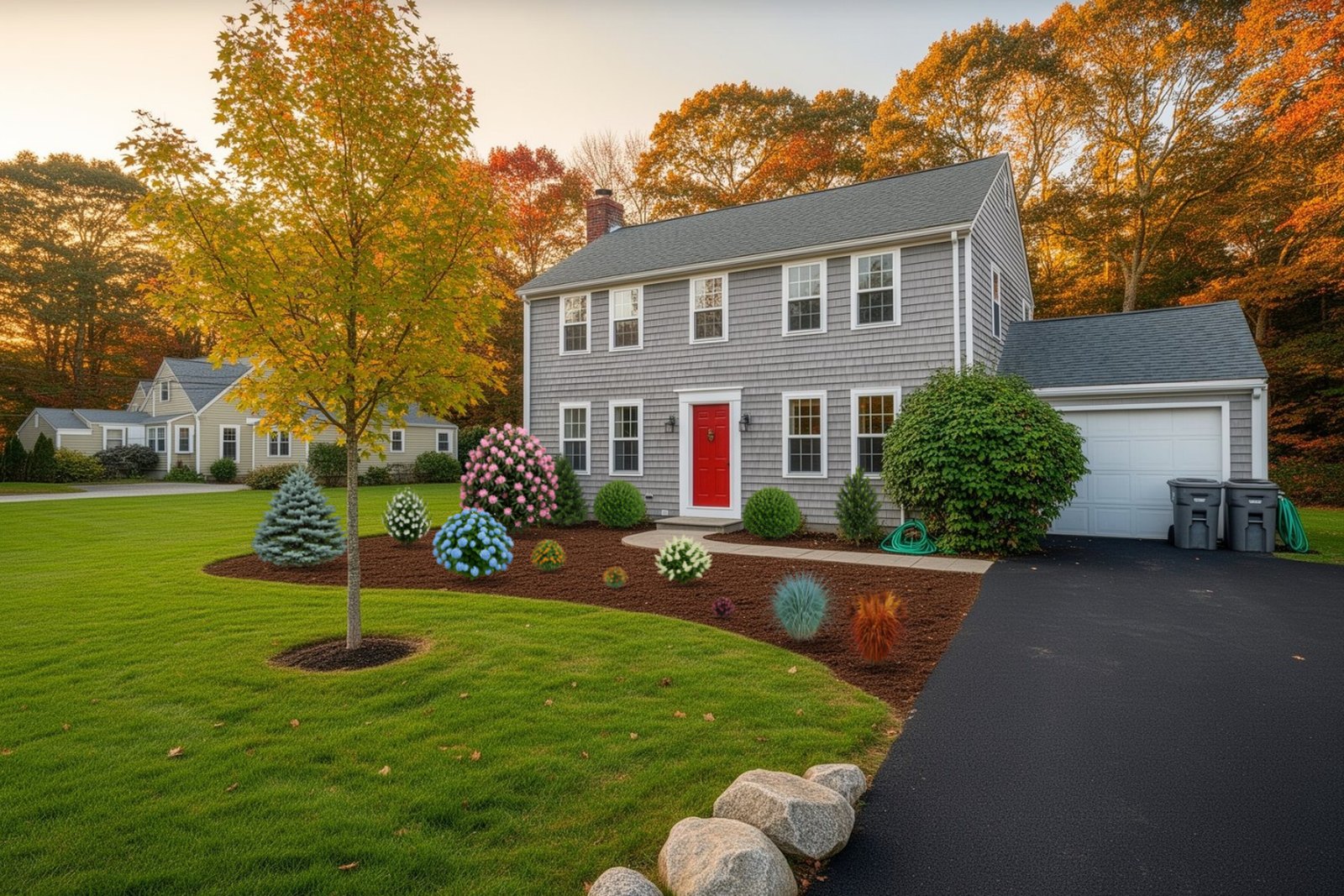
AI can help you picture a yard. It cannot produce a plan you can hand to a crew and build from. In VisionScaper, pictures made with AI are labelled Concept picture – not a build-ready plan, and that label stays on saved pictures, prints and shares.
The sensible way to use AI is as a fast sketching partner for ideas, then check the idea with real plant sizes, real measurements and a contractor.
What AI can do in the VisionScaper Designer
The Ask AI tool opens a panel called Design with AI. You describe a change in plain words, VisionScaper shows a plan, and it acts only when you say so. In guided mode you choose what you want:
- Redesign my yard across the whole picture or in an area you pick.
- Change one thing, such as “gravel path with lavender”.
- Remove something like a bin, a hose or a shrub, with a before and after slider.
- See it realistic or another time, such as fall or dusk with lights.
What AI cannot do
- It does not produce a construction drawing, grading plan or exact quantity list.
- It does not know what is under your soil, where utilities run or what your town allows.
- It may misread what you meant, so results can be wrong. You get Accept, Try again and Undo.
- Its picture of a plant is not a growth forecast. Use the plant fact sheet and See it grow for real sizes.
- Where the AI service is not set up, the panel says it is being set up and will be available soon.
What AI changes and what it leaves alone
Before anything runs, the panel asks What should stay the same? The house, driveway and camera angle are switched on by default, and you can add plants you placed and the fence. Read the plan under “Here’s what I understood”, including anything the plan says it will skip.
Try an AI change step by step
- Sign in and open Ask AI You must be signed in. Signed out, the panel says to sign in to use Design with AI. Tap the sparkle button in the top bar or the Ask AI tool.
- Say what you want Choose what you want to do, where (Whole yard or Pick an area), and describe it. Tap an idea chip or use the microphone. Plain descriptions work best.
- Choose what stays the same Switch on the things the AI must not touch, then press Show me the plan.
- Check the plan and cost Planning is free. The review screen tells you whether the step uses credits, for example “This uses 1 credit.” or “This uses no credits.” Credit amounts and daily allowances in the product are not final, so read what the screen tells you.
- Accept, try again or undo Press Do it, then Accept, Try again or Undo. Ctrl+Z also works. Accept it before asking for the next change. Each request is one step, so a big redesign usually takes several.
What costs credits and what is free
Planning a change is free. Ideas such as “Show it in fall” or “Show it at dusk with lights” set the season and night for free, and they do not change the photo itself. A photo-real look uses the AI restyle step, which uses credits. In the product’s design, replacing and restyling use credits; the guided removal screens show no credit prompt, so check the credits pill in your own account. Free credits refill each day, there are daily limits, and the app offers more if you run out. Check the credits pill in the top bar for what you have; see the in-app prompts for amounts.
Where AI helps with the scale step
Set it up for me finds eye level and may find a door, garage door, car or person to set the scale, and signing in lets it use AI for that. When it spots an object you confirm: tap Yes, that’s right or No, skip it. Without AI, the Designer falls back to straight lines in the photo or typical camera settings.
VisionScaper does not replace the plant fact sheet, the growth chart or the scale step with AI. Those use plant data and your own measurements.
A good way to combine AI and a real plan
Use AI for ideas, then build the version you will actually plant with real items. Place the plants you like from the library at their real size, check growth with See it grow, paint mulch or stone, and save a picture. Hand the picture, and the plant and ground-material list in Print, to a contractor.
Start with how to design a yard from a photo if you have not used the Designer, or open the free Designer directly.
How to write a request the AI can follow
- Be specific about the material and the place: “gravel path from the patio to the gate” beats “make it nicer”.
- Ask for one change at a time, accept it, then ask for the next.
- Select the area first when you only want part of the picture changed.
- If it asks a question with answer chips, pick the closest one.
- Keep what matters switched on under What should stay the same.
Who is behind this, and where your design lives
VisionScaper was started inside a working landscaping company; see about VisionScaper. Your designs are saved in your browser on your device, and copied to your account if you are signed in. A shared link shows your picture, not your address or name.
Sending a design to a contractor is always your choice. They see the design and the contact details you fill in.
Questions about AI yard design
Planning is free. Actions that change the picture can use credits, and the screen tells you before you confirm. Amounts are shown in the app.
Not exactly. It is a concept picture. Real plant sizes, spacing and site conditions decide what can be built.
No. Design with AI needs sign-in. Designing with the plant library and the scale tools does not.
Yes, as an idea. Tell them it is a concept picture, and share a version with real plants and the printed list.
Yes. Use Undo, Try again, Ctrl+Z, or brush Show original over just that spot to bring the true photo back.
Try it in VisionScaper
Try the Designer, then ask the AI for one change and compare it with the original.