

Landscape job costing: how to find the jobs that lose money
Quote each job with a cost, record what it really took, and compare. Here is the method, a worked example and the VisionScaper screens that do it.
Written by the VisionScaper team. Last reviewed 15 October 2026.
What job costing is, in plain words
Job costing means writing down what a job was supposed to cost, writing down what it really cost, and looking at the gap. That gap is where landscape companies quietly lose money: a bed that took a day and a half instead of one day, a second dump run nobody quoted, a pallet of stone that was ordered twice.
You do not need a finance background. You need three habits: put a cost on every job as you quote it, record costs while the job runs, and compare the two before you quote the next one. The rest of this guide shows how, first on paper, then on the screens in VisionScaper.
This guide is general landscaping advice. It does not give industry averages, because your costs depend on your crew, your suppliers and your area.
The cost types worth tracking on every job
Keep the list short enough that your crew will actually fill it in. VisionScaper’s job costing uses six boxes, which is a good model even on a spreadsheet:
- Materials: mulch, stone, plants, pavers, fabric, anything bought for the job.
- Crew hours: the hours people worked, priced at a loaded labor rate (wage plus payroll taxes, workers’ comp and insurance).
- Equipment: rentals, or a charge for your own machines.
- Subcontractors: anyone you paid to do part of the work.
- Disposal and delivery: dump fees, delivery charges.
- Other: permits, fuel, small supplies, anything that does not fit above.
Worked example: one bed refresh, quoted and then actual
Illustrative example, not a benchmark: the numbers are made up and round. A mulch and edging job was quoted at 2,400 dollars. The company uses a labor cost of 40 dollars per crew hour and adds 20 percent overhead on top of direct cost. Dollar amounts are shown as plain numbers in the table.
Estimate versus actual (illustrative example, not a benchmark)
| Line (dollars unless noted) | Estimate | Actual |
|---|---|---|
| Materials | 600 | 700 |
| Crew hours | 16 | 22 |
| Crew labor at 40 dollars an hour | 640 | 880 |
| Equipment | 100 | 100 |
| Disposal and delivery | 80 | 120 |
| Direct cost | 1,420 | 1,800 |
| Direct cost plus 20 percent overhead | 1,704 | 2,160 |
| Quote price | 2,400 | 2,400 |
| Gross profit | 696 | 240 |
| Gross profit as a percent of price | 29.0 | 10.0 |
What the example shows
Direct cost for the estimate: 600 + (16 × 40) + 100 + 80 = 1,420. With 20 percent overhead that is 1,420 × 1.20 = 1,704. Gross profit is 2,400 − 1,704 = 696, which is 29.0 percent of the price.
Actual direct cost: 700 + (22 × 40) + 100 + 120 = 1,800. With overhead: 1,800 × 1.20 = 2,160. Gross profit falls to 2,400 − 2,160 = 240, or 10.0 percent.
The overrun is 456 dollars. Six extra crew hours (240), 100 extra materials and 40 extra disposal add up to 380 of direct cost, and 380 × 1.20 = 456. The job did not lose money, but it earned about a third of what the quote promised. Without costing, you would see a paid invoice and assume it went fine.
Job costing in VisionScaper, step by step
- Set your labor rate and overhead Open Settings, then Costs, and fill in Labor cost per hour and Overhead (%). The quote’s cost math reads both. If you do not know your overhead yet, the Overhead budget (a year) card at the bottom of Plan vs actual turns a year of overhead and billable hours into a rate per labor hour. Nothing changes until you tap Use this, and it only affects new quotes.
- Build the quote with costs, not just a price On the quote, the Job cost (internal) tab lists lines by type: Material, Labor, Equipment, Subcontractor, Disposal, Delivery, Other. The totals bar shows Your cost, Price and Gross profit, and turns the percent red when it falls under 25 percent. That red line is a built-in warning, not an industry target.
- Enter actual costs as the job runs Once the quote is signed it appears on the Jobs screen. Open the job and find Job costing — actual costs. Type Materials, Crew hours, Equipment, Subcontractors, Disposal & delivery and Other. Each box shows the estimate underneath, and the summary updates with Estimated cost, Actual cost so far, Variance and Actual gross profit.
- Look at plan versus actual Open Plan vs actual under Finance & Reports. It shows the quote’s budget against recorded cost section by section, with Profit alerts at the top for jobs that are Over budget level or Margin under target. You can set an alert percentage and a margin floor for one job.
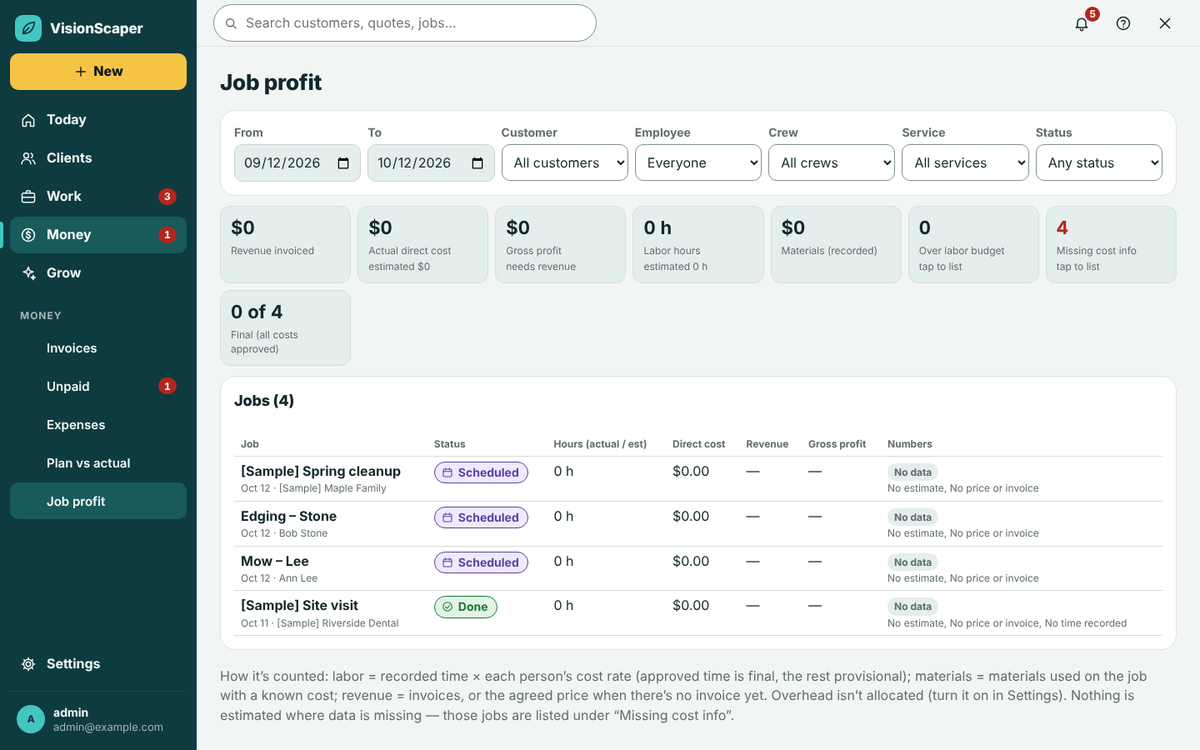
- Review Job profit across all jobs Job profit shows Revenue invoiced, Actual direct cost, Gross profit and Labor hours for a date range, with filters for customer, crew, service and status. Tap Over labor budget or Missing cost info to list just those jobs.
- Capture receipts through Expenses Crew add expenses from the phone app with a category and a receipt photo. Someone with approval rights taps Approve or Reject, and a rejection needs a reason. Approved costs flow into the numbers.
How to read Final and Provisional
On Job profit each job is labelled Final when every cost is approved, Provisional when some time is unapproved or revenue is not invoiced yet, or No data when there is not enough to work out. Small notes name what is missing, such as Time not approved yet or Labor without a cost rate.
Treat Provisional numbers as a warning light rather than a verdict. Approve hours and set each person’s cost rate in the Team tab so more jobs reach Final.
A simple job costing worksheet you can copy
If you are not ready for software, a spreadsheet works. Make one row per job with these columns, and fill the estimate columns before the job starts:
- Job name, customer, date signed, quote price.
- Estimated: materials, crew hours, equipment, subcontractors, disposal and delivery, other.
- Actual: the same six columns, filled in as bills and timesheets arrive.
- Calculated: total direct cost, overhead (direct cost × your overhead percent), gross profit (price − cost), gross profit percent, variance (actual − estimated).
- Notes: what caused the gap (extra hours, wrong quantity, access problem).
Limits to know before you rely on the numbers
- The Job costing — actual costs boxes on the job are typed by hand. Hours your crew clocked appear in Field work under Job profit, a second record-based view.
- In Plan vs actual, only purchased materials are assigned to sections. Labor shows in the row Other (labor and anything not in a section).
- Bills tied to a job are counted once, so a purchase order and its bill do not double up.
- Job costing needs a signed quote. Draft quotes do not appear in the job picker.
- Which plan includes which job costing tools is on the pricing page.
Questions about landscape job costing
Enter costs as the job goes, not at the end, so a problem shows while you can still fix it. Review the Job profit screen at least weekly in season.
Estimated cost comes from your quote. Actual cost is what you recorded: materials bought, hours worked, equipment, subcontractors and disposal. The gap is the variance.
Yes. A job that covers its direct cost can still lose money once trucks, insurance and office costs are shared out. See the markup and margin calculator and the guide to landscaping profit margin.
Yes. The worksheet above uses the same columns. Software mainly saves retyping and brings crew time and receipts into the same place.
Try it in VisionScaper
See the quote, the job and the profit screens with your own numbers. Learn more about job costing software or start your free trial.