

Landscaping route planner for the crew’s day
Pull the day’s jobs from your calendar, add lunch and fuel, and get the order and a route sheet for the crew. Plus door-to-door tracking and equipment reminders.
The route planner plans one crew’s day at a time.
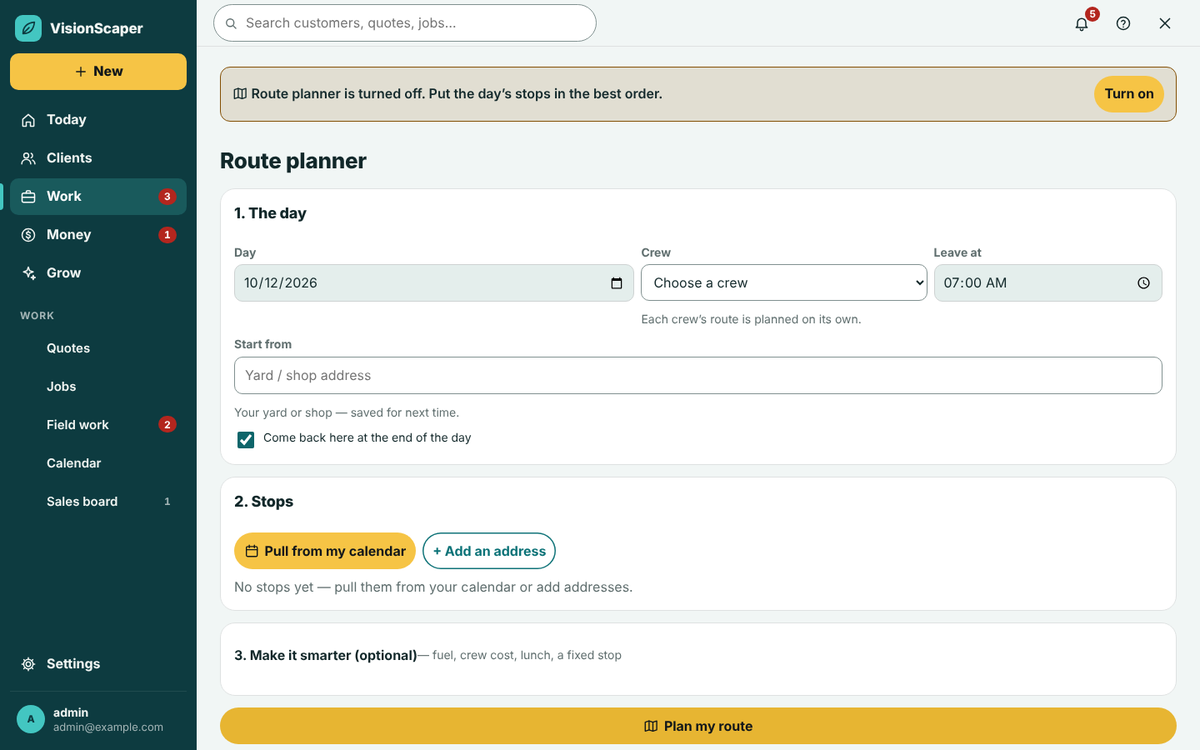
Pull the day’s jobs from the calendar
- Choose the day and the crew Pick the day, the crew and the time they leave. Each crew’s route is planned on its own.
- Set the start and the end Type your yard or shop address once; it is saved for next time. Tick the box to come back there at the end of the day, or type another end address.
- Pull from my calendar One tap adds that crew’s visits with how long each takes. Visits with no address are flagged so you can fix them. You can also add a supplier stop by typing its address.
- Plan the route Tap Plan my route. Planning does not change your calendar unless you choose to update the times.
Lunch, fuel and trailer settings
A drive plan that ignores lunch and fuel falls apart by noon. These optional settings are what make the plan one a crew can follow.
Vehicle and fuel
Choose a vehicle or type your own miles per gallon and tank size, tick the box if you pull a trailer (about 25 percent fewer miles per gallon is assumed), and say how full the tank is.
Crew cost
Enter the crew size and their combined hourly wage so paid driving time counts toward the cost of a fuel stop.
Lunch
Set a time and a length, or no break, and ask to be near restaurants at lunch.
A fixed stop
Add a place to be by a set time, such as meeting another crew or picking up a part.
Best order and a printable route sheet
The result shows the order, each leg with miles and minutes, and a note on how the order was chosen. If the tank will run low, it lists three gas stations ranked by total cost: fuel, the extra driving and the crew’s paid time, each with a plain reason.
Print the route sheet, open it as a page to save as a PDF or share, or open it in Google Maps. If some stops came from the calendar, you can move those visits to their planned times and choose whether customers are told about the new times. That box is off by default.
- Plan in the evening so the crew has the sheet before they leave.
- Keep customer notification off until you are sure of the times.
Door-to-door canvassing
Door-to-door is a map of the houses you knock on. Tap a house, tap what happened, add a name and a note, and save. Results include flyer left, not home, interested, wants a quote, call back, already a customer, do not come back and no soliciting sign. Extra tick boxes cover things like needs lawn care or beds that need mulch.
Do not come back and no soliciting sign show a red warning if you tap the house again, and they never get a follow-up date. Follow-ups due lists houses to return to. When you save wants a quote with a name and a way to reach the person, the house becomes a lead in your customer records. Your houses are never shown to homeowners or other contractors, and you can export the list.
Equipment maintenance reminders
Add each mower, truck and trailer. VisionScaper fills in its usual maintenance, then tells you when something is due.
Meters
Track engine hours, miles, or dates only. Log a new reading and the next due point is scheduled.
Tasks you can edit
Oil, blades, grease, filters, belts, tires, registration and your own tasks, each due after hours, miles or days, whichever comes first.
Reminders
One message a day at most, by email, text or both. Text only works if messaging is set up.
Service history
Record the date, meter, cost and who did the work; the cost stays as a record.
How distances are worked out
| Source | When it is used | What the screen says |
|---|---|---|
| Google Routes | A Google key is saved by the site administrator | Google driving distances |
| OSRM server | No Google key, but an OSRM address you host is saved | OSRM driving distances |
| Estimate | Neither is set | Estimate from straight-line distance |
What to expect and where it is limited
The planner orders one crew’s day at a time. For eight stops or fewer it checks every possible order; longer days use a fast method that gives a good order but does not guarantee the shortest one. Real traffic is never modelled, so check a plan against a few trips you know before relying on it.
An estimate multiplies straight-line miles by 1.3 and guesses minutes. Gas prices come from Google when a Google key is set and can be hours old; without a key the station with the least extra driving wins. The planner is a tool you can switch on or off, and availability depends on your plan. The visits it reads come from scheduling, and your crew follows the day in the crew app. Once the work is done, job costing shows what each job really cost.
Questions about route planning
No. Traffic is not modelled, even when Google or OSRM supplies the driving distances.
No. It plans one crew’s stops for one day. Pick the crew and plan each team’s day on its own.
Not to use it. Without a key or an OSRM server the planner shows estimates. A Google key adds driving distances and fuel prices.
Only if you tap Update the calendar times. Customer notification is a separate box, off by default.
No. The houses belong to your business and are not shown to homeowners or other contractors.
Keep exploring
Landscaping scheduling software for crews and site visits
Schedule crews, book site visits and follow every landscaping job from signed quote to finished work, with…
A landscaping crew app for today’s jobs and the time clock
A phone app for landscape crews: today’s jobs, directions, checklists, job photos, a time clock and office…
Landscaping job costing software: plan versus actual
Compare the plan with what really happened: labor, materials, purchases and expenses on every job, plus overhead…