

Landscaping CRM software for leads, customers and conversations
Keep every customer, property and conversation in one place, and see each lead move from request to signed job. The design, quote, schedule and invoice for a property sit on the same customer record.
Built for landscape contractors. Some inbox and lead-source features depend on your plan.
Customers and the properties you work on
The Customers list searches by name, phone, email, address or tag, and filters by stage. Only the full name is required to add someone, so a call can be logged in seconds. Add the rest when you have it: preferred contact, budget, timeline, gate or access, pets, irrigation, HOA and a separate billing address.
A customer can have several properties. Each property card holds an aerial view, photos you add, a plan summary and notes on soil, sun and drainage. You can create a landscape plan from it, and check slope when the property has map coordinates. See how to measure and plan a property, then price it with quotes.
- Four tabs: Overview, Work, Money and Notes (private contractor notes plus history).
- Log a call, note, meeting or text, schedule a visit, or start a quote from the customer page.
- Import customers from CSV, vCard or Google Contacts, check duplicates and undo an import within 7 days.
- Export all customers or only the ones you tick.
A sales board for every lead stage
| Column | What lands there |
|---|---|
| Lead | A customer with no quote yet, or a quote that is still a draft or a request |
| Quoted | A quote that is sent or viewed but not signed |
| Signed | A signed quote with nothing on the calendar yet |
| Scheduled | A signed quote with a visit booked, or a job in progress |
| Done | A signed quote whose job is finished |
| Lost | A declined or expired quote, or a customer you marked lost |
Cards move on their own as you send a quote, get it signed, schedule and finish the job. You only decide one thing by hand: mark a deal Lost with a reason, and reopen it if the customer comes back. Each column shows its count and dollar value.
Set the stage and source (Website, Phone call, Referral and more) on every customer. A report at the top of the board shows the last 90 days: close rate, dollars signed and results by lead source, so you can see which source pays. The Needs you list on the Today screen gathers what is waiting, such as new requests to answer and signed quotes with no job booked.
One inbox for texts, emails and web requests
Web requests and customer messages land in the Inbox. Two-way text threads are in the Marketing screen. Channel setup and consent rules are covered under texting and email.
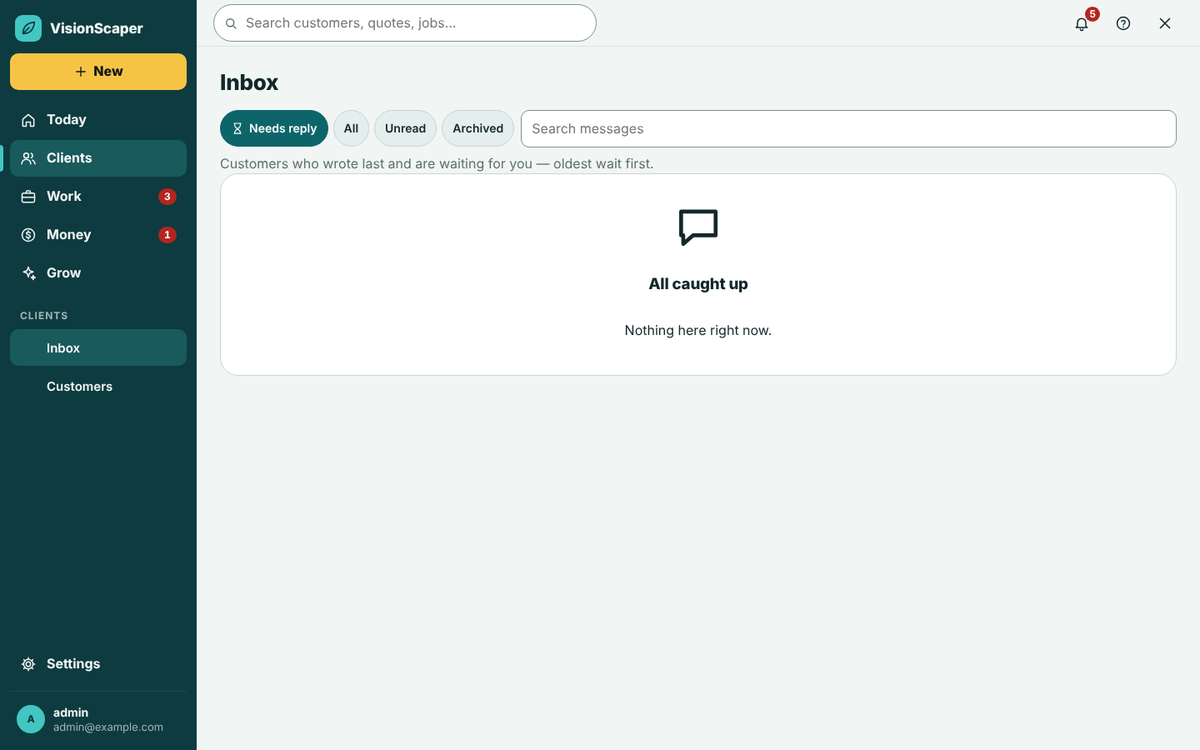
Needs reply first
The default view lists what is waiting, oldest first, with how long each has waited. Needs-reply tracking and quick replies depend on your plan.
The project card
A request starts a conversation with the address, services, quote status and next visit. Start the estimate, book a visit or ask for missing details with one tap.
Photos and quick replies
Add a photo to a message, drop in a saved reply, or call the customer from the thread.
Calls answered for you
When nobody can pick up, the AI receptionist can answer, collect details and book a visit, once you have set it up.
A request form and self-booking for your website
- Turn the form on In Settings, Connected apps, switch on the request form and choose which services it lists, from your service templates.
- Choose photos and questions Allow 0 to 10 photos. Add your own intake questions per service so you can price without a call.
- Offer visit times Optionally let visitors pick a time. Times come from the working hours and bookings of the people you allow, and stay a request until you confirm unless you choose automatic confirmation.
- Paste it on your site Copy the WordPress shortcode, a one-line embed or a link to a framed form page. Spam protection is always on, with Cloudflare Turnstile as an option.
Bring in leads from Angi, Thumbtack and Google Local Services
Request sources gives each service its own private web address and a box to paste a request email. Choose Check it to preview the name, phone, email, address and message before anything is added. Matching uses email or phone, never the name alone, so a repeat lead updates the existing customer.
VisionScaper does not read a mailbox for you. To have emails arrive automatically, use a mail-forwarding service that posts to your private address. The email layouts VisionScaper reads are based on typical notifications and have not been checked against live emails from these services, so test with a sample first. If a field is missing, the lead is still saved. This feature depends on your plan.
The customer portal: quotes, invoices and reviews
Customers with a VisionScaper account see My Projects. Others use the private links in your messages. Costs, internal notes, crew names and other customers’ records are never shown.
Quotes
Read each proposal and sign inside the portal, the same as on the link.
Invoices
See balances and due dates, with a Pay online link when an invoice is open.
Job photos
Photos you marked as shared with the customer.
Reviews and referrals
Customers can review finished work with a photo and share a personal referral link. A friend who uses it arrives as a new lead with the source set to referral. Use marketing automation to ask at the right moment.
Questions about landscaping CRM
Both, because they share one record. The customer page links to the property, plan, quotes, jobs and invoices, and the sales board reads from them. Nothing has to be copied from one place to another.
Yes. Import a CSV from tools such as QuickBooks, Google, Jobber or Excel, a vCard file, or connect Google Contacts. Check for duplicates before importing.
The Needs reply view in the Inbox, and the Needs you list on the Today screen.
No. Quotes, invoices and requests work through private links. An account adds the portal, a calendar of appointments and autopay.
Yes. See how it fits landscape contractors, with intake questions for planting, patios, walls, lighting, drainage and more.
Keep exploring
Landscaping text message and email software
Text and email customers from one inbox with consent, STOP handling, quick replies and automatic reminders. Choose…
Landscaping marketing automation, with you in control
Email and text campaigns, automations, review requests and an AI assistant that suggests who to contact. You…
Landscape quoting software that starts from the design
Build landscape quotes from a design, a measured plan or a site visit. Use your price book, add e-signature and…
See the sales board with your own leads
Start your free trial, add a few customers and follow one lead from request to paid invoice.