

A landscaping crew app for today’s jobs and the time clock
Your crew gets a small phone app: today’s jobs with directions, checklists, photos, a time clock and messages with the office. It keeps the next few days of jobs on the phone, so a weak signal does not stop work.
Crew screens never show prices. Which tabs each person sees is set by their role.
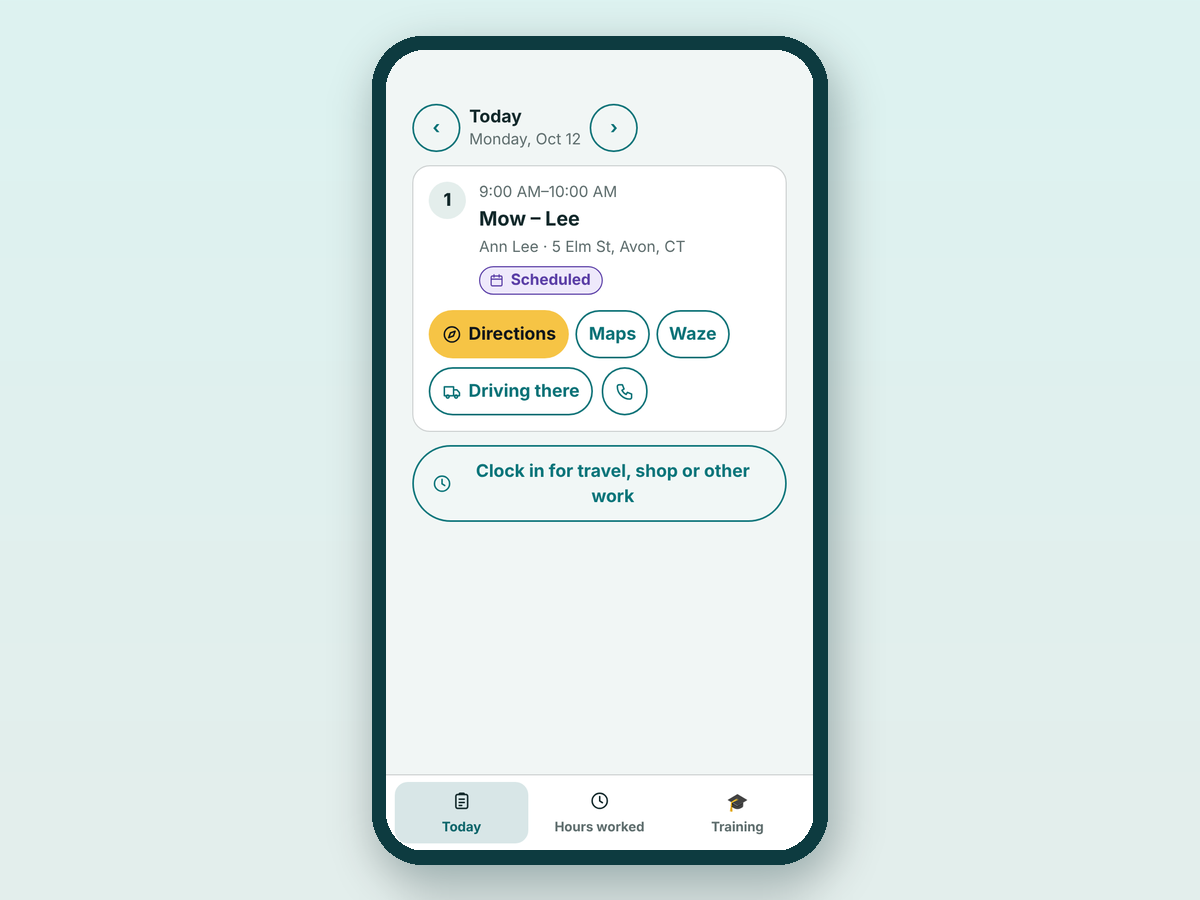
What a crew member sees when they open the app
Crew members and crew leaders get a deliberately small phone: My day, Time and Messages. Messages appears only if you allow it for their role. Jobs are listed by day, in order, with the time, customer and address.
Open a job to see the job packet: the scope of work, what is included and excluded, instructions, equipment and site notes such as gate, pets, utilities and irrigation. Directions open in Google Maps, Apple Maps or Waze, and the crew can call or text the customer.
Jobs appear only when you have assigned the person in the scheduling software. Sequence the day with the route planner.
- Status buttons: On my way, Arrived, Start, Pause, Resume, Blocked and Needs follow-up (the last two ask for a reason), then Finish.
- On my way can send the customer a text or email from your template.
- Issue reports with a photo alert the office and can mark the job blocked.
- Crew leaders can clock several people in or out in one tap.
Clock in and out, and the hours you approve
- Clock in for travel or the job Tap Driving there, or use En route, Arrived and Start job. Travel, shop time and breaks have their own activities.
- Fix a forgotten clock-out A banner offers Set the time I finished. The manager sees the time was set by hand. If nobody fixes it, the timer closes after the number of hours you chose and is flagged.
- Submit the week Each person reviews their week, adds missed time with a reason and submits. A submitted week is locked for the employee.
- You approve or send back On Hours worked you see each person’s week, correct entries with a required reason, then approve or send it back with a note. Every change is listed.
- Approved hours feed the rest Only approved time counts as final in job costing from real hours. Approved hours can be exported as a CSV for your payroll provider. VisionScaper does not run payroll.
Checklists and photos on every job
Build the closeout once, attach it to every job or to certain services, and the crew completes it on the phone.
Checklists and forms
Items can be tasks, yes or no, numbers, short answers, pick-one, photos and signatures, with conditional questions and a can’t-do-this reason.
Required means required
A job cannot be finished with required items missing. A manager with the override right can finish it with a written reason.
Job photos
Photos are sorted as before, progress, after or damage, and upload when there is signal.
Share and mark up
Tick Customer can see to share a photo, or mark it up with arrows, circles and notes. The original is never changed. You can require before and after photos to finish.
Messages with the office
The Messages tab is a chat between crew and the office. Crew and leaders can write to the owner and managers, and the office can write to anyone on the team who has a login. Customer conversations are never shown there.
Messages are limited to 1,000 characters and the tab shows an unread badge. To message customers instead, see texting and email. The owner can switch crew messaging off for any role.
What works with no signal
| Works offline | Needs a connection |
|---|---|
| Reading the jobs the phone already loaded for the next days | Changes to customers, leads, schedules and routes |
| Status taps, clock in and out, checklist answers | Anything that sends a message to a customer |
| Photos, which wait on the phone and upload later | Anything that touches money |
| Recording used materials and issues | Opening jobs that were not loaded earlier |
Location tracking you control
Location is off by default. If you switch it on, the phone shares position only while a person is clocked in. The office sees a live team map, a person’s trail for a day and estimated mileage, and time entries show whether the person was on site.
You can require each person to accept a written notice, show a banner in the app that location is shared, set how long points are kept, and download or delete a person’s points. Tracking employees is regulated in many places, so check your state’s rules and have the notice wording reviewed. VisionScaper does not give legal advice.
How crews get the app on their phones
Add each person under Field work, then Team: name, role, crew, availability and a cost rate that the employee never sees. Enter the email they will sign in with. They sign in on the phone with the same email and password as your VisionScaper site, and the phone then gets its own key.
Your website must use https. A sign-in lasts 90 days without use. If a phone is lost, sign that phone out from the list of signed-in phones and it stops working at once. The same happens when you switch an employee off. Ask us through the contact page how the app is delivered to your crew’s phones for your setup. Add crew training to give every new hire the same start.
Questions about the crew app
No. The crew screens leave money out, and the cost rate you set for an employee is never shown to them.
They can set the time they finished, and the manager sees it was entered by hand. Otherwise the timer closes after the hours limit you set and the entry is flagged for review.
No. It keeps the next days of jobs on the phone, and status taps, time and photos are sent when the signal returns. Changes that message customers or move money need a connection.
No. It exports approved hours as a CSV, with regular and overtime hours, for your payroll provider. Check overtime rules for your state yourself.
Yes. Location sharing is off until you switch it on, and each privacy option is yours to set.
Keep exploring
Landscaping scheduling software for crews and site visits
Schedule crews, book site visits and follow every landscaping job from signed quote to finished work, with…
Landscaping route planner for the crew’s day
Plan the shortest order for a crew’s day with lunch, fuel and trailer settings, track door-to-door visits and…
Landscaping job costing software: plan versus actual
Compare the plan with what really happened: labor, materials, purchases and expenses on every job, plus overhead…
Put the day’s jobs on your crew’s phones
Start your free trial and open the crew screens, the time clock and the approval flow.